> ## Documentation Index
> Fetch the complete documentation index at: https://rambros3d.com/llms.txt
> Use this file to discover all available pages before exploring further.
> Guide to flash Bluetooth Control Firmware for Locomotive control boards such as Tracklinks and G-Tracks
# Firmware flashing
 ## Prerequisites:
* **VS Code** - [**DOWNLOAD**](https://code.visualstudio.com/Download)
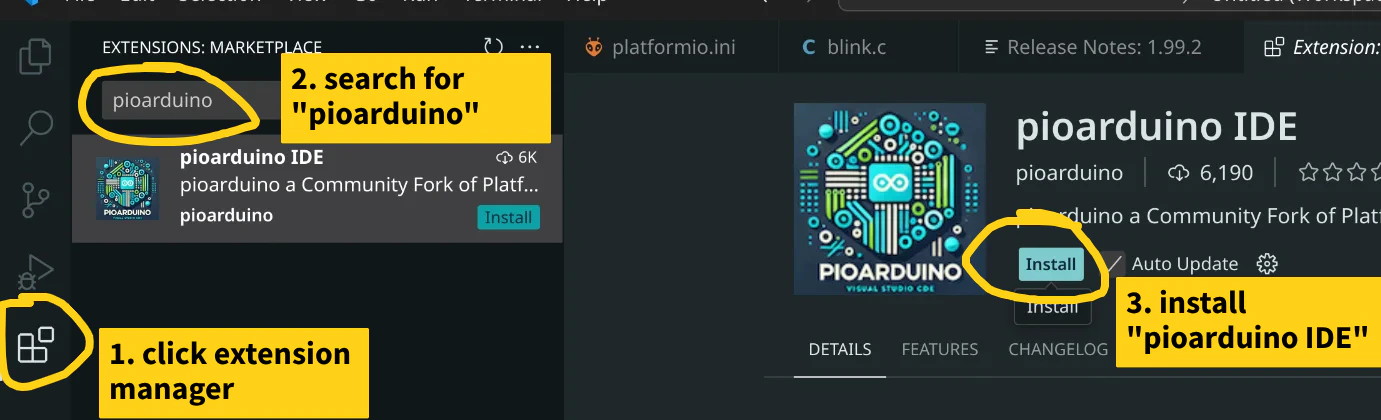
* **Pioarduino** - install it from VS code extension manager
## Prerequisites:
* **VS Code** - [**DOWNLOAD**](https://code.visualstudio.com/Download)
* **Pioarduino** - install it from VS code extension manager
 ## 1) Clone repository
Go to **Source Control** (Ctrl+Shift+G) and clone this repository
###### Repo URL - Locomotive BLE control: [https://github.com/DragonRailway/TrainControl\_BLE](https://github.com/DragonRailway/TrainControl_BLE)
## 1) Clone repository
Go to **Source Control** (Ctrl+Shift+G) and clone this repository
###### Repo URL - Locomotive BLE control: [https://github.com/DragonRailway/TrainControl\_BLE](https://github.com/DragonRailway/TrainControl_BLE)
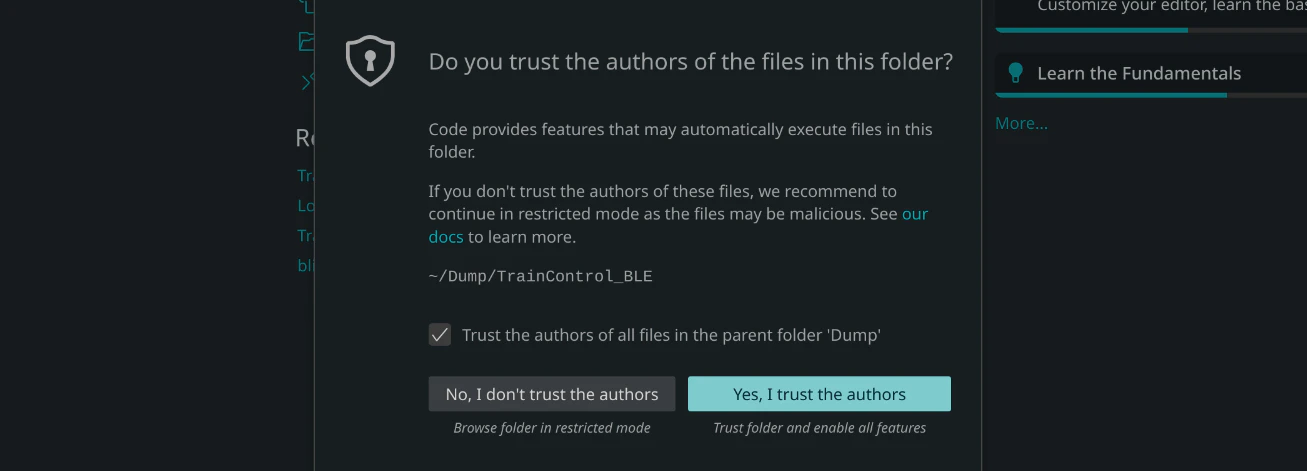
 Click `"Yes, I trust the authors"`
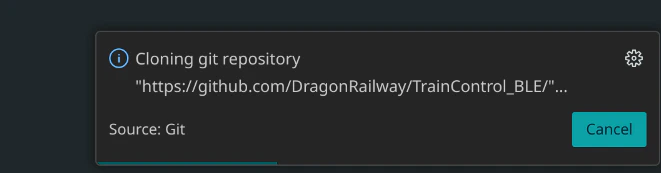
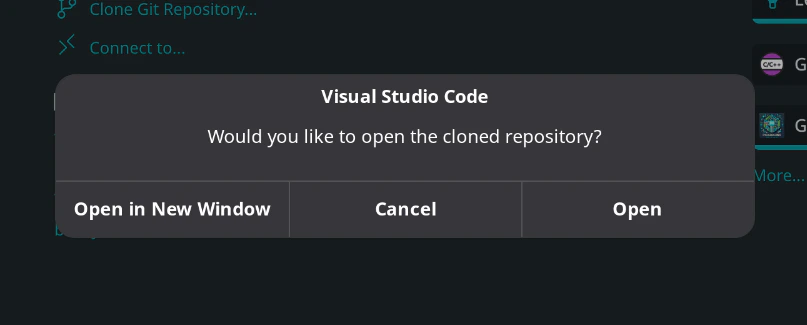
 Once the Cloning is complete, **Open** the repository
 ## 2) Select your Control Board
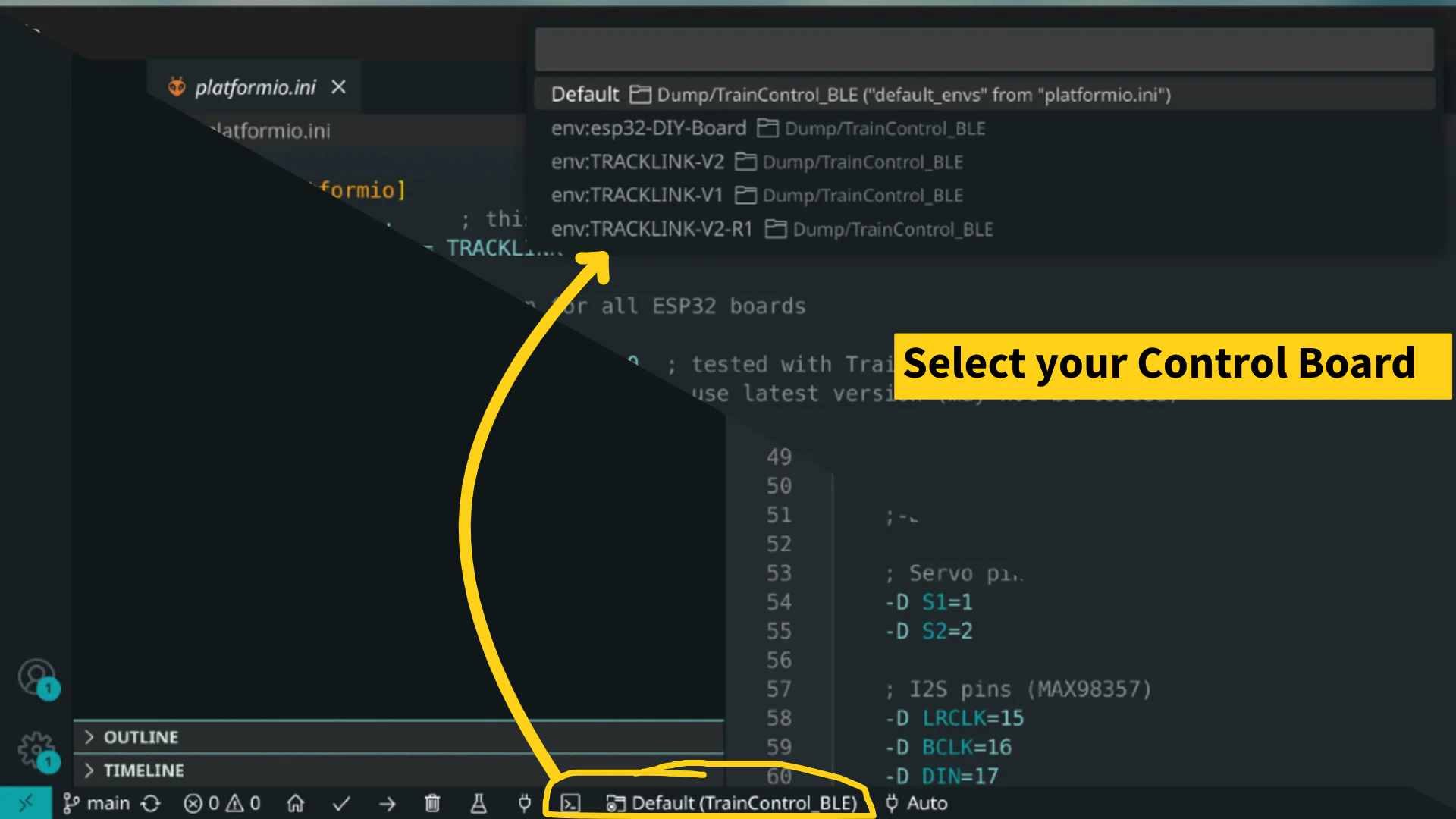
Leave it as Default if you're using `TRACKLINK-V3`
## 2) Select your Control Board
Leave it as Default if you're using `TRACKLINK-V3`
 ## 3) Connect and Upload
While uploading code for the first time, you might have to manually enter boot mode by clicking **RST** button while holding **BOOT** button.
## 3) Connect and Upload
While uploading code for the first time, you might have to manually enter boot mode by clicking **RST** button while holding **BOOT** button.
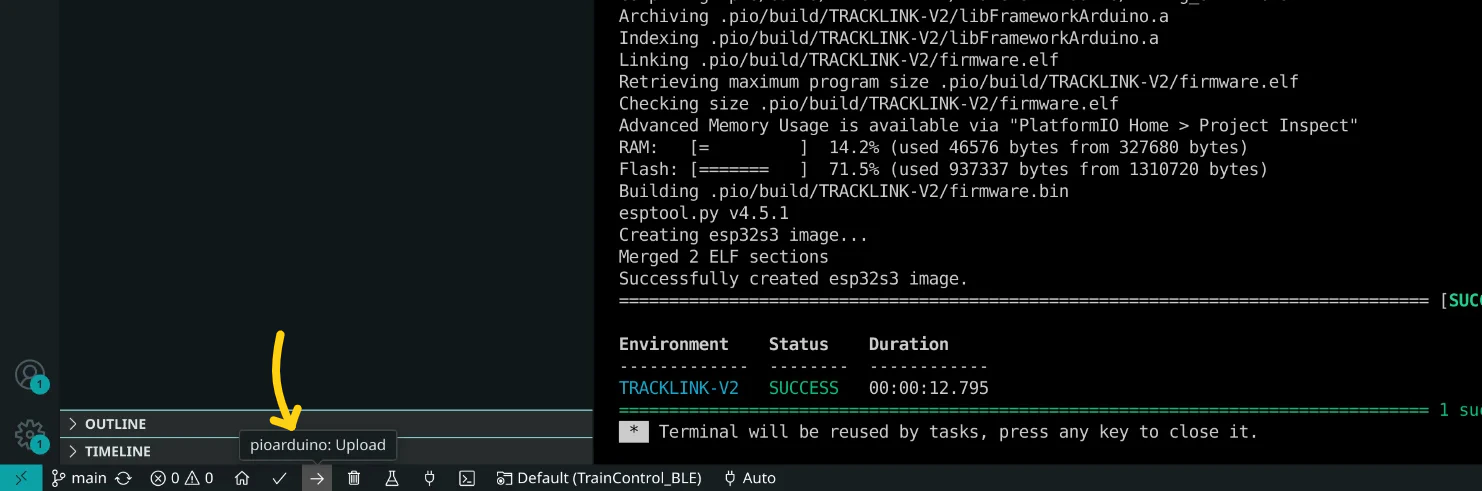 After uploading code, the RemoteXY app will need to authenticate for connection. Use password: **1234**